Color, organized.
Explore, create, and edit color palettes on iPhone, iPad, and Mac. Hundreds of hand-picked palettes, generators powered by color theory and your camera, and one-tap hex copy. Everything syncs privately through iCloud.

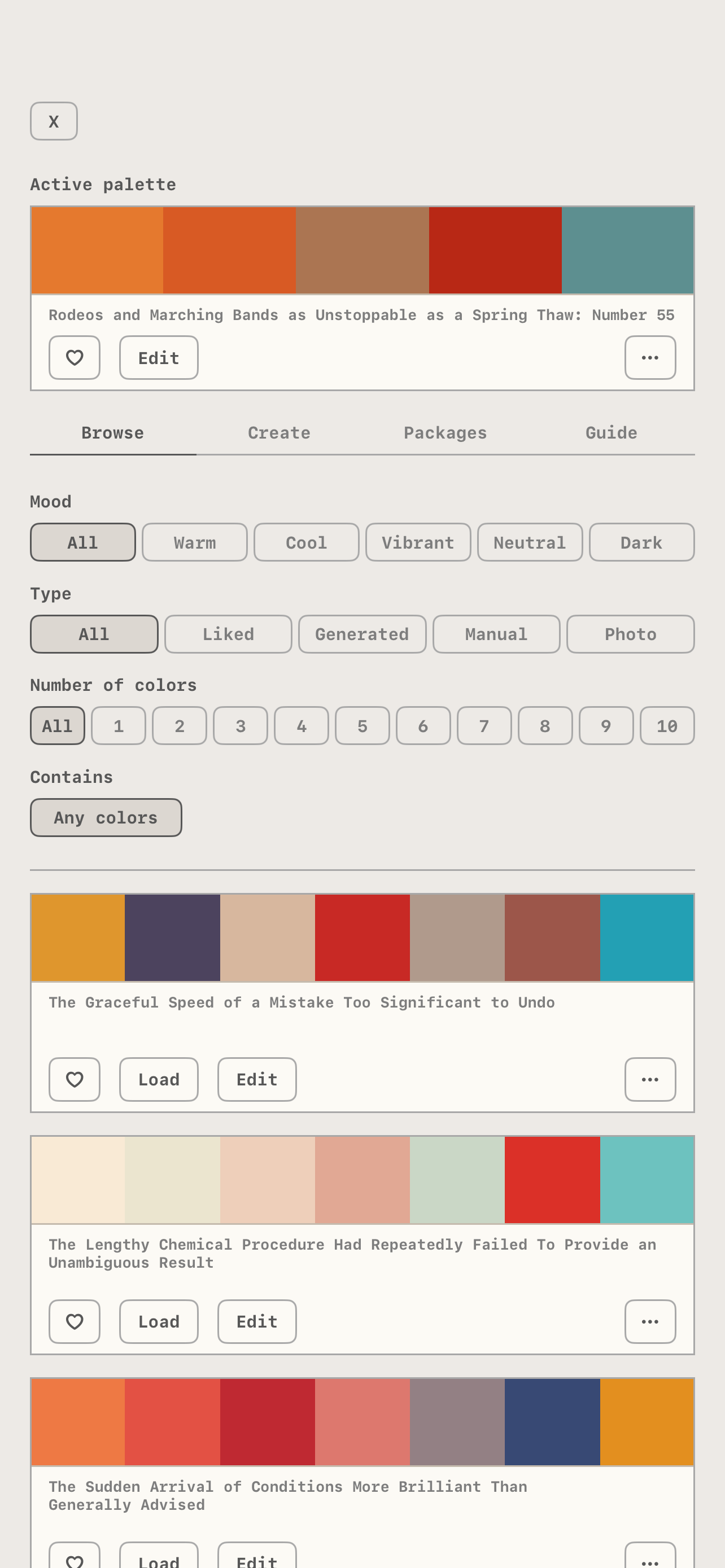
A curated library
800+ hand-picked palettes in the Starter Kit, organized by mood, plus optional packs you can show or hide. Filter by mood, source, and number of colors.
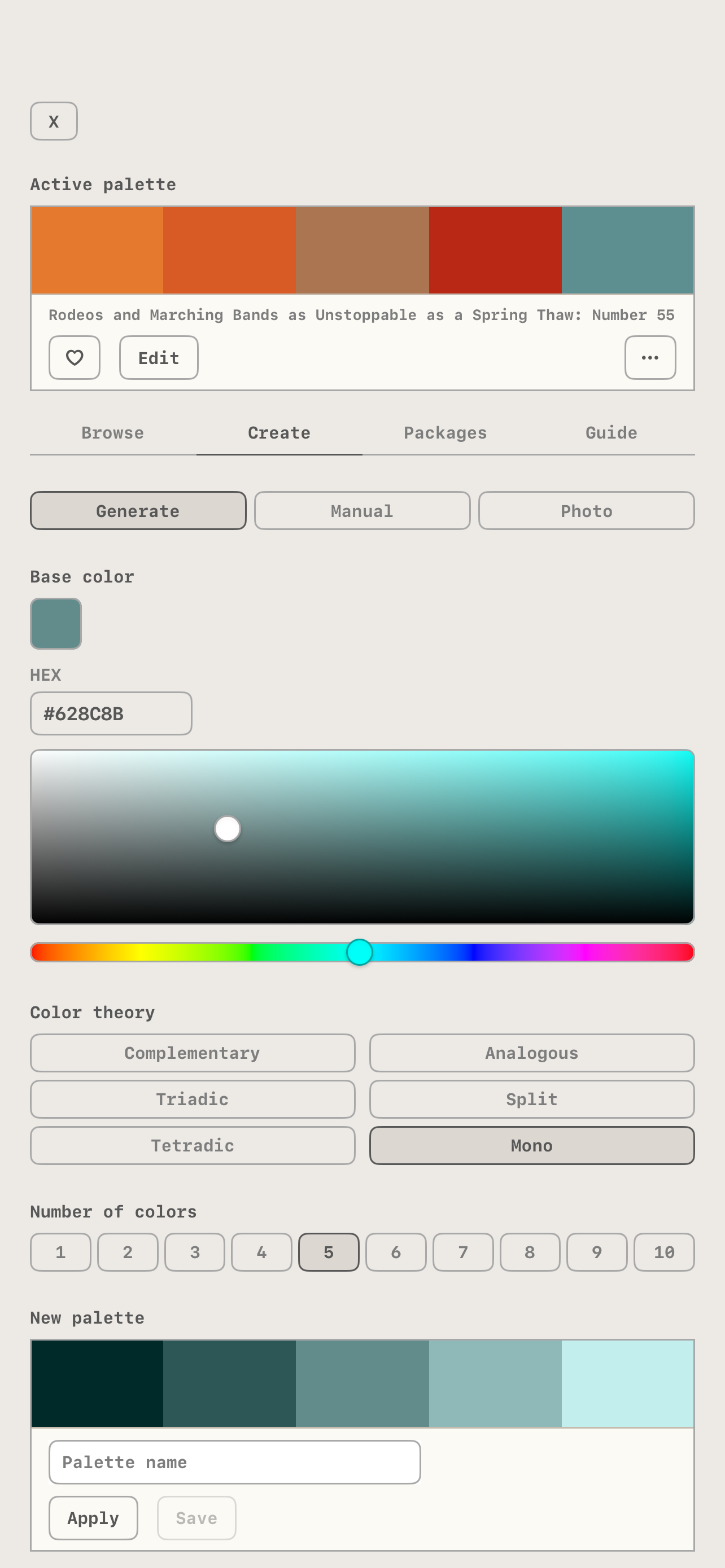
Create your own
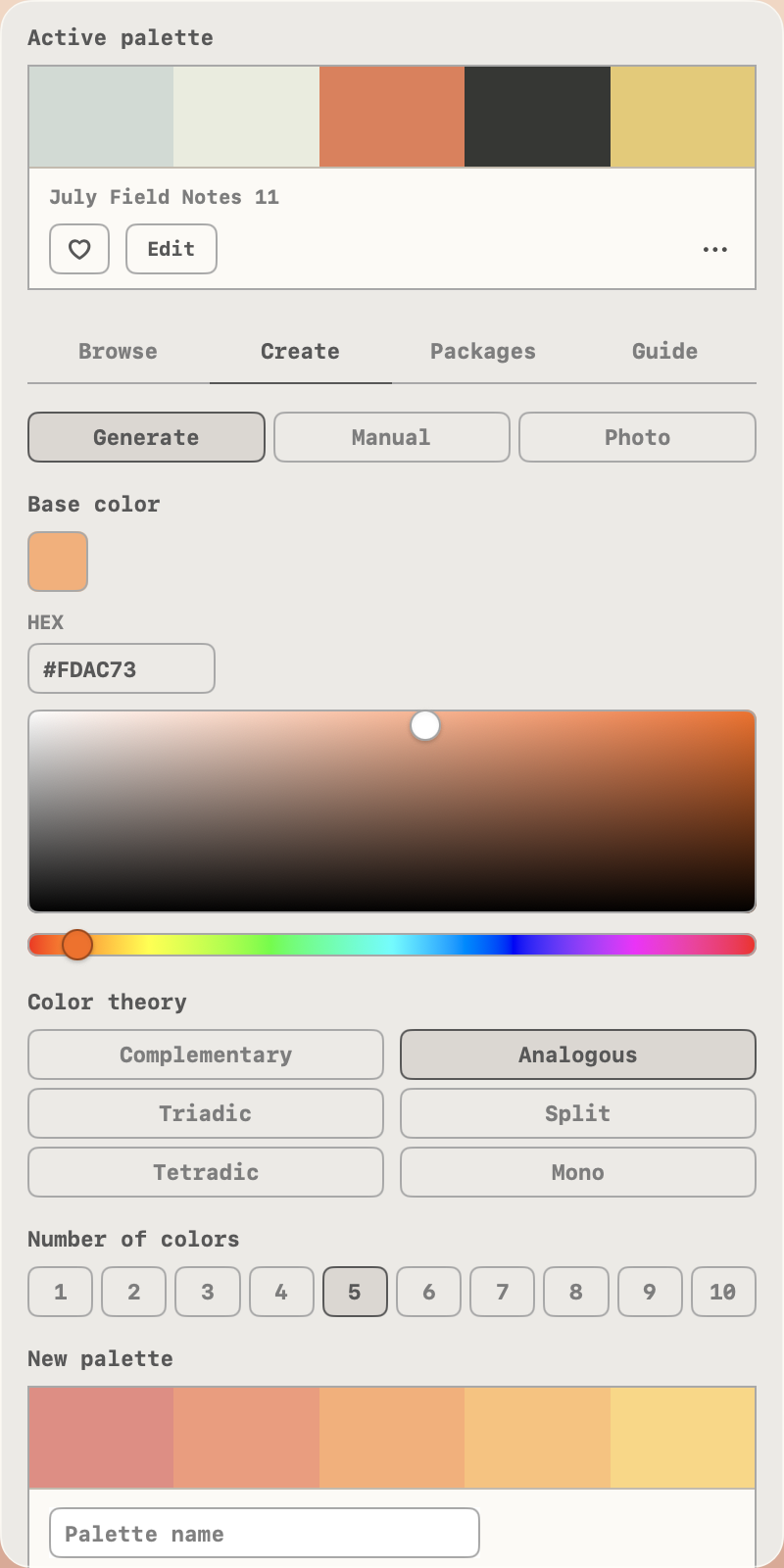
Generate from a base color and a harmony scheme, build one by hand in the live strip, or pull the dominant colors out of any photo. Schemes are computed in a perceptual color space, so they look balanced to your eye.
Edit and remix
Edit any palette in place: drag the chips to reorder, tap to recolor, add or remove colors. Or edit the full-screen palette directly, with press and hold on iPhone and iPad or Command-E on Mac. Edit a built-in palette and your version saves as a new palette, with the original left untouched.
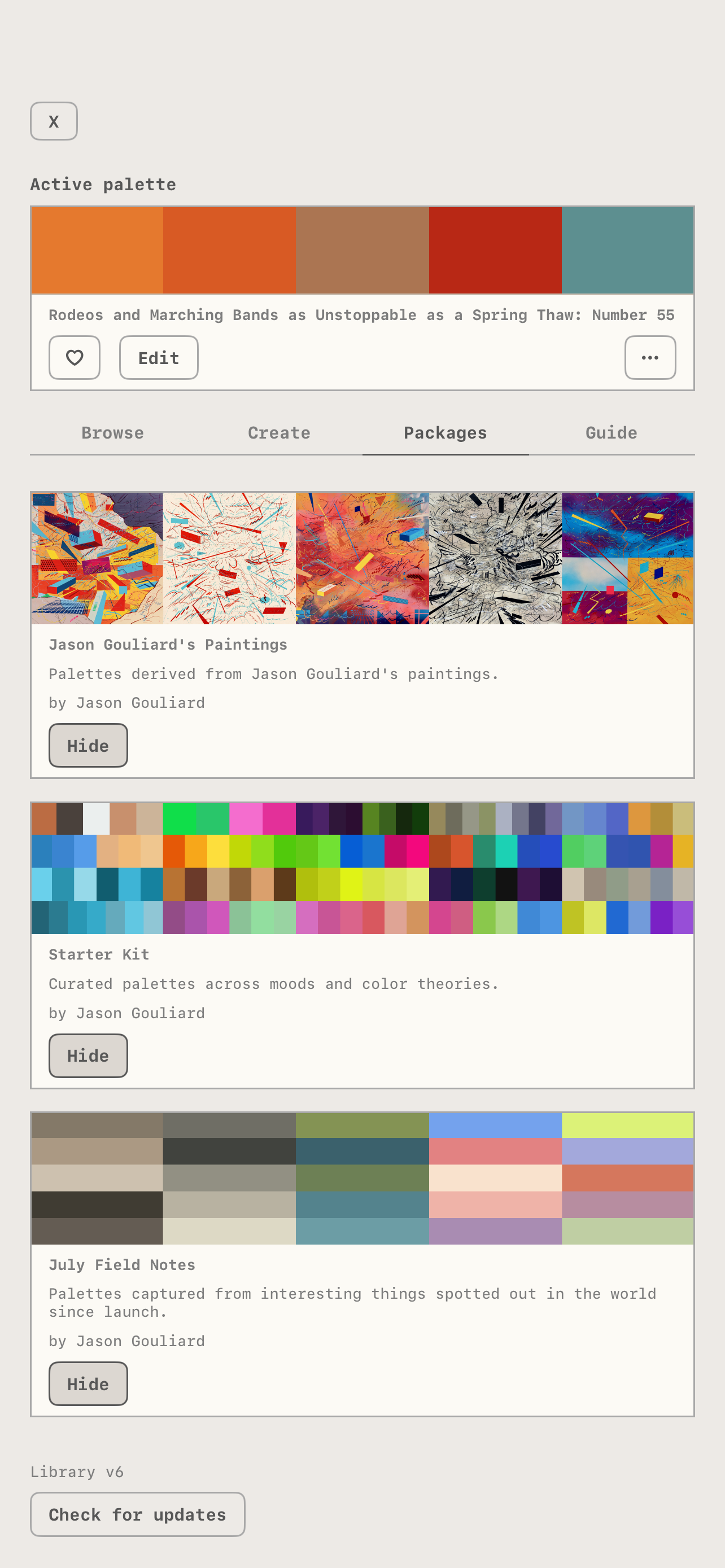
Palette packs
New packs arrive over time, always free. Show or hide any pack, and the app checks for library updates automatically.
Ambient mode
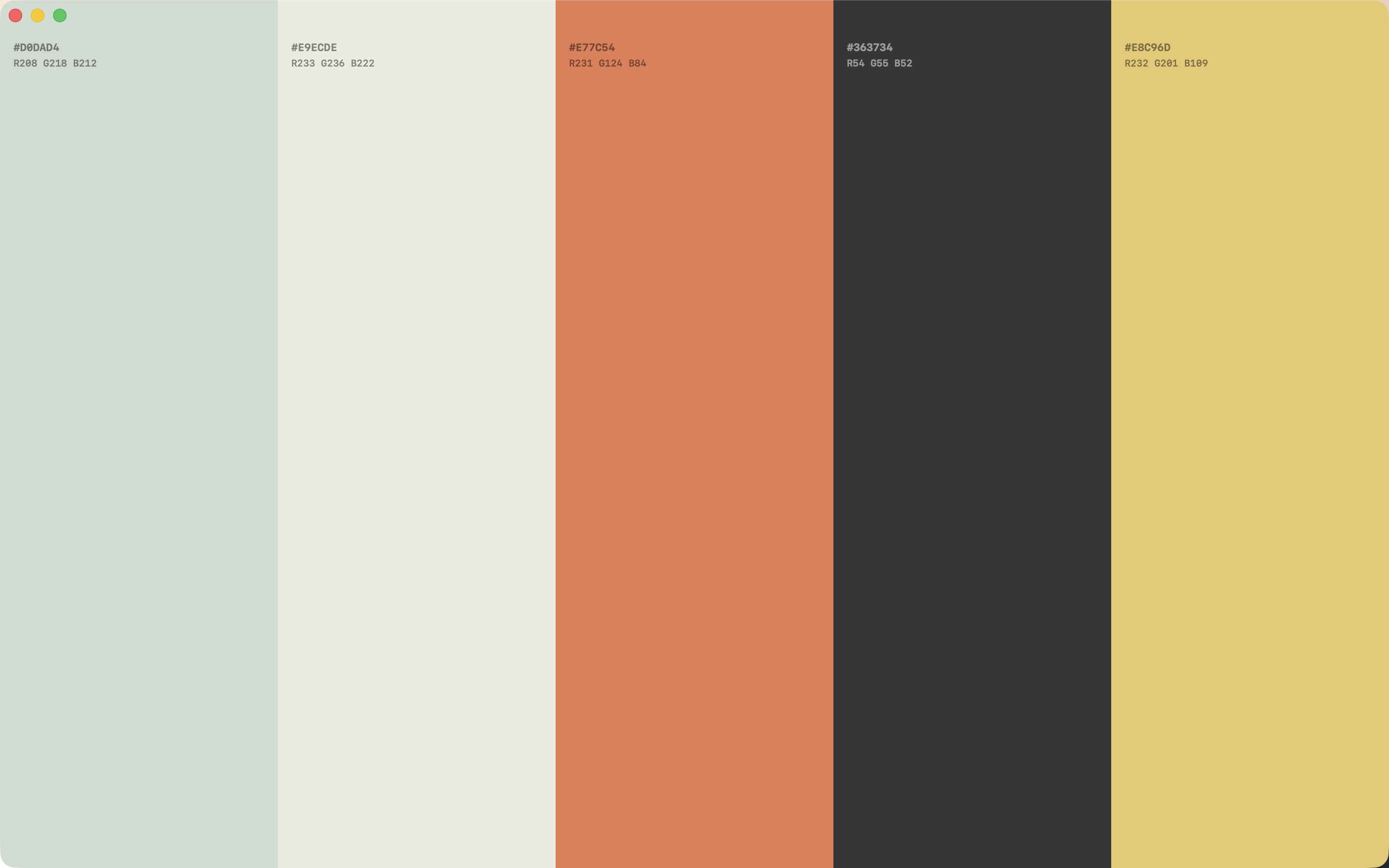
Press and hold the menu button and the app goes full screen, with every label and control hidden. Palettes drift and auto-cycle. Just color.
Now on the Mac
A Book of Colors lives in your menu bar, one click away, with keyboard shortcuts and the same Ambient mode (⇧⌘A). Your saved palettes and liked colors stay in sync across all your devices through iCloud.
Syncs everywhere, private to you
Saved palettes, photo extractions, generated palettes, and likes sync across every device on your iCloud, including source photos. No accounts, no tracking, nothing shared with anyone.
How it works
-
 Swipe up to load a random new palette
-
 Swipe down to go back to the previous palette
-
 Swipe left and right to change the layout
-
 Tap the circle icon to open the settings panel
-
 Tap any color to copy its hex code to clipboard
-
 Press and hold any color, then drag it onto another to reorder. It saves automatically.
-
 Press and hold the circle icon to enter Ambient mode. Palettes auto-cycle every few seconds; tap anywhere to exit.
-
 Saved palettes appear in the Browse tab